

Schedule a single or recurring lesson
You need permission to create lessons at the school.
- Open Account → Calendar and click Create Event.
- Under Type, choose Class. Fill in Title.
- Set when the lesson will take place:
-
Single: fill in Start Date, End Date, and the start and end times.
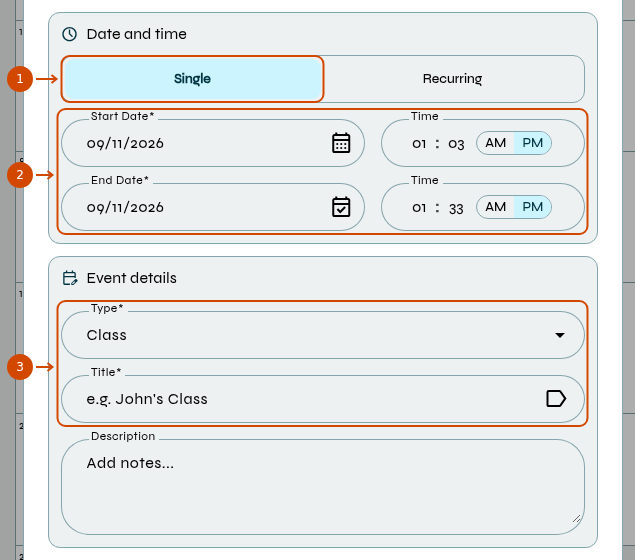
1: single lesson. 2: dates and times. 3: type and title.
-
Recurring: enter the start date and times. Under Repeat Every, set the interval and Week or Month frequency. Configure Repeat On and choose an end by number of occurrences, date or Never.
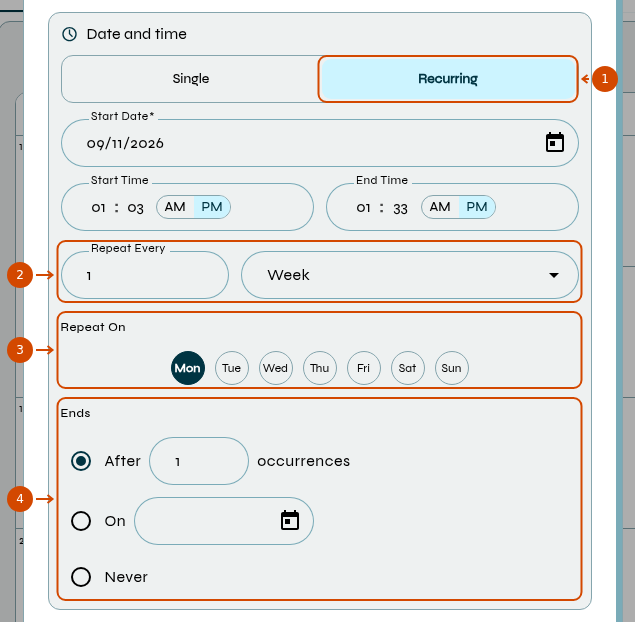
1: recurring lesson. 2: interval and frequency. 3: weekdays. 4: series end.
-
- Under Video platform, choose Slingui or Other. For Other, enter the meeting URL in Meeting Link.
- Select the participants and fill in Description if needed.
- Check the details and click Create Event. Check the lesson in the calendar.
The event starts with Status: Scheduled. Event details are visible to invited students; do not put private notes in Description.