

Allow camera and microphone access in Chrome on a computer
If Chrome has blocked your camera or microphone, change the permission for the class website only. These instructions are for computers.
Allow access
Section titled “Allow access”-
Open your Slingui class page in Chrome and check the address:
meeting.slingui.com. -
Click the icon to the left of the address, used to view site information, and open Site settings.
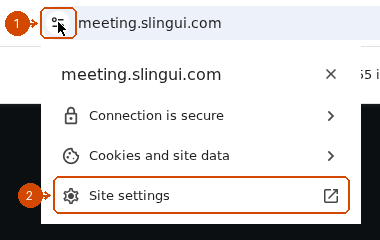
1: site information icon. 2: Site settings.
-
Set Camera and Microphone to Allow. Your changes are saved automatically.
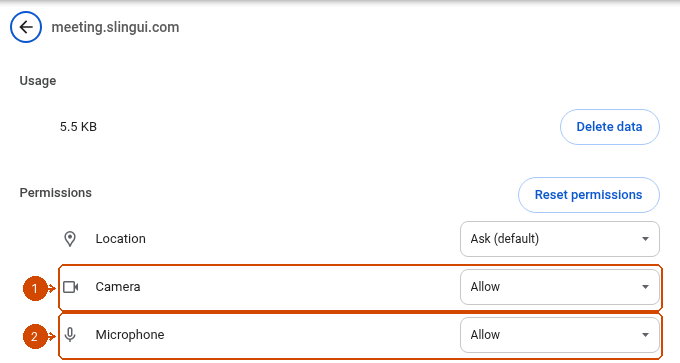
1: Camera. 2: Microphone. Both are set to Allow.
-
Return to the class tab and reload the page. Try turning on your camera and microphone again.
If access is still blocked, check Windows or macOS permissions in the general computer guide. On school- or company-managed computers, an administrator may prevent changes.
See also: Safari on iPhone/iPad · Chrome Help.