

Set a teacher's permissions
Use the school’s management account, with permission to edit teachers. The teacher must have accepted the invitation for their access permissions to appear.
- In Account → Teachers, click the pencil icon (edit) in the teacher’s row.
- In the Teacher info tab, open Manage teacher permissions.
- In the Students and groups section, choose whether they can see all students at the school or only students assigned to them.
- Enable only the actions they need, such as inviting students, editing records or creating groups. On and Off indicate whether an action is allowed.
- Check the remaining sections. Grant billing, subscription or school editing permissions only when the teacher’s role requires them.
- Scroll to the bottom of the form and click Save.
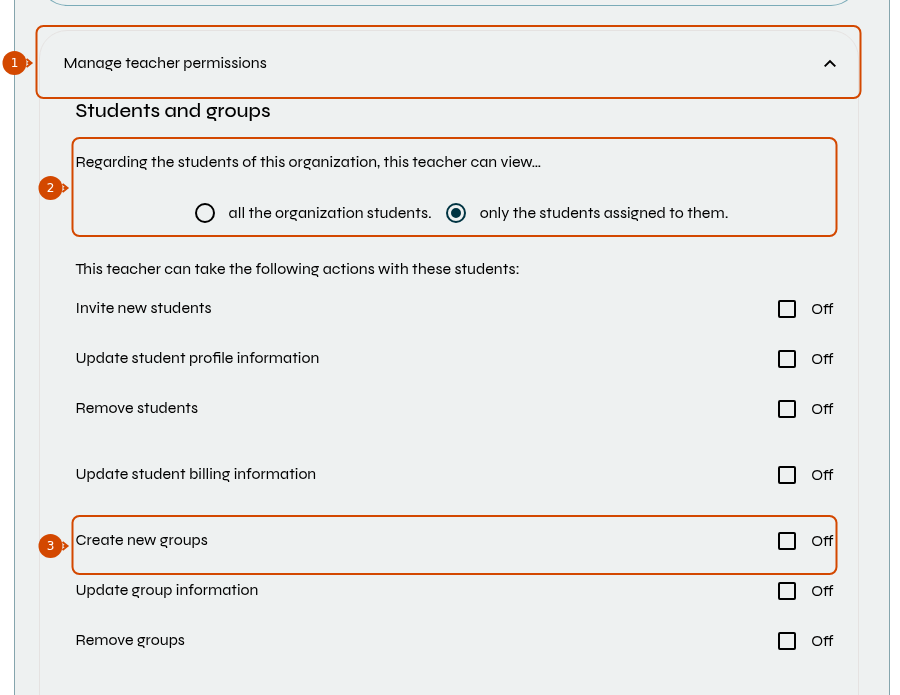
1: permissions panel. 2: scope of visible students. 3: example of permission to create groups. Interface in English.
When changing the scope of students, check the related actions again before saving: they may follow the new scope.
If the panel does not appear, check that the invitation has been accepted and your account has access to manage the teacher. To change their name and other details, see how to edit their record.