

Customize the school's name, logos, color and theme
Use the school’s management account, with permission to change its settings.
- In Account, open Custom branding in the school section.
- Check School Name.
- In Brand Color, enter a valid hexadecimal color or use the color picker.
- In Default Theme, choose Light or Dark.
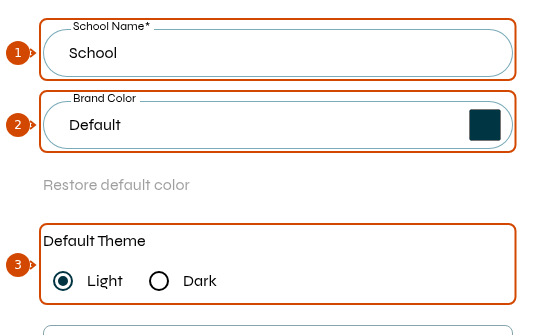
1: name. 2: color. 3: default theme. Interface in English.
- If needed, adjust Brand placement: choose how the brand appears in the expanded sidebar, collapsed sidebar and loading screen.
- Upload the logo versions under Logo (for Light Background) and Logo (for Dark Background), according to the background where they will be used.
- Click Save to apply the settings.
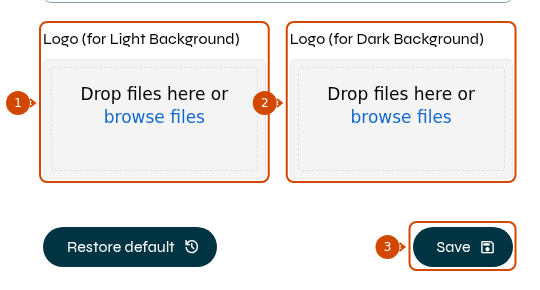
1: logo for a light background. 2: logo for a dark background. 3: save. Interface in English.
Restore default color restores only the color. Restore default resets the overall customization and opens a confirmation; use it only if you want to discard the current settings.
If you only need to change the name, you can also use the school profile.