

Edit student or teacher details and find the invitation again
You need permission to edit the person’s record at the school. The email address cannot be changed in these forms.
Edit a student
Section titled “Edit a student”- In Account → Students and groups, find the student and click the eye icon (visibility) in their row.
- Open the Profile tab.
- Edit the available fields, such as name, phone number, date of birth, document and description.
- Scroll to the bottom of the form and click Save.
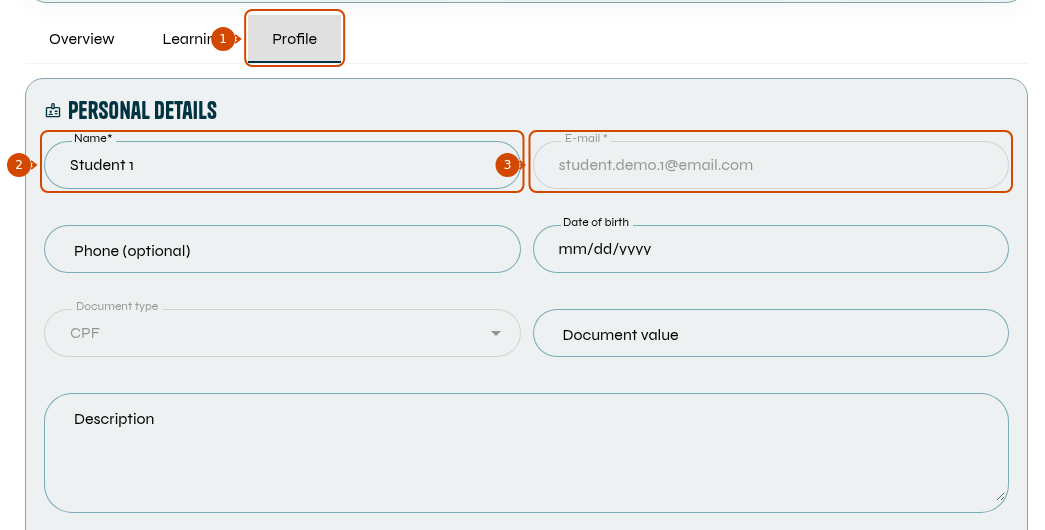
1: Profile tab. 2: name. 3: email address for reference only. Interface in English.
Edit a teacher
Section titled “Edit a teacher”- In Account → Teachers, click the pencil icon (edit) in the teacher’s row.
- In the Teacher info tab, edit the fields you need to change.
- Click Save.
To change what the teacher can do, use the permissions guide.
Find a pending invitation again
Section titled “Find a pending invitation again”- Student: open their record and click Invitation link in the header to copy the link. You can also copy it under Profile → Access, in the Invitation link field.
- Teacher: open the editing form from the Teachers list and copy the Invitation link field.

1: copy the student’s invitation. Interface in English.
The link only appears while the invitation is pending. If the person has already accepted it and cannot sign in, see how to reset the password. You do not need to create another invitation to edit their record.